
Chapter 3 : Windows Inno Installer, Packaging, and Publishing to Chocolatey
Flutter Desktop Mastery
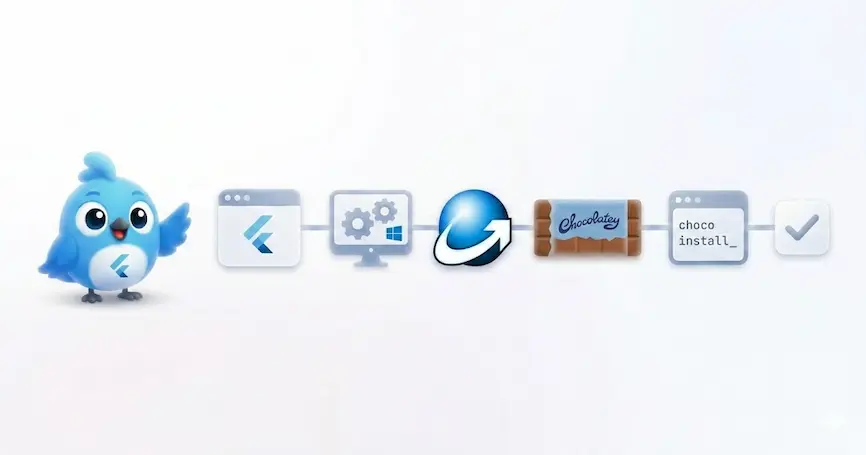
Shipping a Windows desktop app is not just about producing an .exe. Users expect a proper installer, clean uninstall, and an easy way to update. For Spotube, we solved that by pairing fastforge with an Inno Setup template and Chocolatey package manager for distribution to power users.
We want a pipeline that:
- Produces a Windows installer (
.exe) with a modern wizard UI - Injects version metadata and app branding automatically
- Installs required runtime dependencies (VC++ runtime)
- Generates a Chocolatey
.nupkgfor distribution
Spotube achieves this with four main building blocks:
- fastforge for orchestrating Flutter desktop packaging
- Inno Setup as the installer engine
- InnoDependencyInstaller for bundling prerequisites
- Chocolatey for package distribution
We also distribute our app through WinGet, but we will cover that in a future article. The Inno installer is the common denominator for both channels.
WinGet part is more involved with CI/CD then build steps as Microsoft requires a public repository and a manifest PR for each release, so we will cover that separately.
Spotube uses fastforge as the packaging driver and stores its Windows packaging config under:
./windows/packaging/exe/make_config.yaml
The config is intentionally small because the heavy lifting happens in the Inno script template:
app_id: <RANDOM GUID>
publisher: <YOUR NAME OR COMPANY>
publisher_url: https://yourwebsite.com
display_name: <YOUR APP NAME>
create_desktop_icon: true
install_dir_name: YourAppNameWithoutSpaces
script_template: inno_setup.iss
locales:
  - en
This config injects identity details, publisher URLs, and icon behavior into the installer template. You can expand locales to ship translated installer UIs later.
The real power is in the installer template:
spotube/windows/packaging/exe/inno_setup.isscontributed by the community (Thanks to @olivier2)
Fastforge takes a templated Inno script (using Jinja-like tags) so it can fill in build-time values.
To learn in-depth about InnoScript and how it works, check out the Inno Setup documentation.
Use the InnoSetup VSCode Extension for syntax highlighting and IntelliSense in VSCode or similar IDEs/code-editor.
[Setup]
AppId={{APP_ID}}
AppVersion={{APP_VERSION}}
AppName={{DISPLAY_NAME}}
AppPublisher={{PUBLISHER_NAME}}
AppPublisherURL={{PUBLISHER_URL}}
DefaultDirName={autopf}\{{DISPLAY_NAME}}
OutputBaseFilename={{OUTPUT_BASE_FILENAME}}
SetupIconFile={{SETUP_ICON_FILE}}
WizardStyle=modern
WizardSmallImageFile="..\\..\\assets\\branding\\logo.bmp"
The script keeps branding consistent and ensures Windows “Programs & Features” metadata is correct.
[Tasks]
Name: "desktopicon"; Description: "{cm:CreateDesktopIcon}"; Flags: checkedonce
Name: "launchAtStartup"; Description: "{cm:AutoStartProgram,{{DISPLAY_NAME}}}"; Flags: unchecked
Users get a desktop icon option and an optional “launch on startup” task. The defaults are driven by fastforge variables.
[Files]
Source: "{{SOURCE_DIR}}\\*"; DestDir: "{app}"; Flags: ignoreversion recursesubdirs createallsubdirs

[Icons]
Name: "{autoprograms}\\{{DISPLAY_NAME}}"; Filename: "{app}\\{{EXECUTABLE_NAME}}"
Name: "{autodesktop}\\{{DISPLAY_NAME}}"; Filename: "{app}\\{{EXECUTABLE_NAME}}"; Tasks: desktopicon
Name: "{userstartup}\\{{DISPLAY_NAME}}"; Filename: "{app}\\{{EXECUTABLE_NAME}}"; Tasks: launchAtStartup
All app files are copied into {app}, with shortcuts created for Start Menu, Desktop, and Startup.
We include the InnoDependencyInstaller helper so prerequisites install automatically: It supports a wide range of dependencies, but for Flutter Windows, the most common one is the VC++ 2015-2022 runtime.
#define public Dependency_Path_NetCoreCheck "..\\..\\build\\inno-depend\\dependencies\\"
#include "..\\..\\build\\inno-depend\\CodeDependencies.iss"

[Code]
function InitializeSetup: Boolean;
begin
  Dependency_AddVC2015To2022;
  Result := True;
end;
This pulls in the VC++ 2015-2022 runtime at install time, which is required for most Flutter Windows builds.
The entire inno_setup.iss is quite huge. We suggest you give it a look at or even copy it from our repository as it’ll work for 90% of Flutter desktop apps without modification.
Pre-requisites:
- Install Inno Setup on your Windows machine
- Ensure
iscc(Inno Setup Compiler) is in your PATH - Run
git clone https://github.com/DomGries/InnoDependencyInstaller build/inno-dependto clone the InnoDependencyInstaller into the expected location - Install fastforge globally via
dart pub global activate fastforge
Then, from the root of the Spotube repo, run:
$ fastforge package --platform=windows --targets=exe --skip-cleanThis will build the Flutter Windows app, generate the Inno installer, and place it in dist/<version from pubspec.yaml>/<your-app-name>-windows-setup.exe. You can distribute this .exe directly, and users can actually run it to install the app. Most developers stop here and share the installer as-is, which is perfectly fine for small projects or internal distribution.
But for a more polished distribution, we wrap it in a Chocolatey package.
Once the installer exists, Spotube wraps it as a Chocolatey package from:
./choco-struct/
The structure looks like this:
choco-struct/
  spotube.nuspec
  tools/
    chocolateyinstall.ps1
    chocolateyuninstall.ps1
    VERIFICATION.txt
LICENSE.txt<your app>.nuspec defines package metadata that will be displayed on Chocolatey and used for versioning. Spotube’s spotube.nuspec looks like this:
<?xml version="1.0" encoding="utf-8"?>
<!-- Do not remove this test for UTF-8: if “Ω” doesn’t appear as greek uppercase omega letter
enclosed in quotation marks, you should use an editor that supports UTF-8, not this one. -->
<package xmlns="http://schemas.microsoft.com/packaging/2015/06/nuspec.xsd">
<metadata>
<!-- == PACKAGE SPECIFIC SECTION == -->
<id>spotube</id>
<version>1.0.0</version>
<packageSourceUrl>https://github.com/KRTirtho/spotube/tree/master/choco-struct</packageSourceUrl>
<owners>Kingkor Roy Tirtho</owners>
<!-- ============================== -->
<!-- == SOFTWARE SPECIFIC SECTION == -->
<title>spotube (Install)</title>
<authors>Kingkor Roy Tirtho</authors>
<projectUrl>https://spotube.krtirtho.dev</projectUrl>
<iconUrl>
https://rawcdn.githack.com/KRTirtho/spotube/7edb0bb834eb18c05551e30a891720a6abf53dbe/assets/branding/spotube-logo.png</iconUrl>
<copyright>2022 Spotube</copyright>
<!-- If there is a license Url available, it is required for the community feed -->
<licenseUrl>https://github.com/KRTirtho/spotube/blob/master/LICENSE</licenseUrl>
<requireLicenseAcceptance>true</requireLicenseAcceptance>
<projectSourceUrl>https://github.com/KRTirtho/spotube</projectSourceUrl>
<docsUrl>https://spotube.krtirtho.dev</docsUrl>
<bugTrackerUrl>https://github.com/KRTirtho/spotube/issues/new</bugTrackerUrl>
<tags>spotube music audio youtube flutter</tags>
<summary>🎧 Open source music client that doesn't require Premium nor uses Electron! Available
for both desktop & mobile! </summary>
<description>
Spotube is a Flutter based lightweight music client. It utilizes the power
of music metadata providers & Youtube's public API & creates a hazardless, performant
& resource
friendly User Experience
# Features
- Open source/libre software
- Anonymous/guest login
- Cross platform support
- No telemetry, diagnostics or user data collection
- Lightweight & resource-friendly
- Native performance (Thanks to Flutter+Skia)
- Playback control is done locally instead of on the server
- Small size & less data usage
- No ads since it uses all public & free APIs (It is still recommended
to support the creators by watching/liking/subscribing to the artists' YouTube channels or
liking their tracks on different music platforms.)
- Time synced lyrics
- Downloadable tracks
</description>
<releaseNotes>https://github.com/KRTirtho/spotube/releases/tag/v1.0.0</releaseNotes>
</metadata>
<files>
<file src="tools\**" target="tools" />
</files>
</package>The version placeholder is replaced during the Windows build process (see the automation section below).
Chocolatey runs tools/chocolateyinstall.ps1, which uses the Inno Setup silent install flags:
$fileLocation = Join-Path $toolsDir '<your-app-name>-windows-setup.exe'
# Inno Setup silent install arguments
$packageArgs = @{
  fileType      = 'exe'
  file          = $fileLocation
  silentArgs    = '/VERYSILENT /SUPPRESSMSGBOXES /NORESTART /SP-'
  validExitCodes= @(0)
}

# This is a Chocolatey helper function that runs the installer with the specified arguments
Install-ChocolateyInstallPackage @packageArgs
To learn more about Chocolatey packaging and the available helper functions, check out the Chocolatey Packaging Tutorial.
The uninstall uses the registry to discover the Inno uninstall entry and runs it silently:
[array]$key = Get-UninstallRegistryKey -SoftwareName '<your-app-name>*'

if ($key.Count -eq 1) {
  $packageArgs['file'] = "$($_.UninstallString)"
  Uninstall-ChocolateyPackage @packageArgs
}
Here you can see we’re quite literally embedding the app binary (installer) inside the Chocolatey package. Because our application size is quite small < 30MB, so we embed it. But it is highly recommended that you host the installer on a CDN or your own server and use the url parameter instead of file in Install-ChocolateyInstallPackage to avoid hitting Chocolatey’s package size limits and to allow for faster updates without needing to republish the entire package.
Following is the example of using url instead of file:
$packageName = 'windirstat'
$fileType = 'exe'
# Using url instead of embedding the installer in the package
$url = 'http://prdownloads.sourceforge.net/windirstat/windirstat1_1_2_setup.exe'
$silentArgs = '/S'

Install-ChocolateyPackage $packageName $fileType $silentArgs $urlChocolatey moderators require a hash check for embedded binaries. Spotube injects SHA256 into:
tools/VERIFICATION.txt
SHA256 0a05b56727f5c72a6d608dbd320c8fd119eb5030f20253127889c7306d797cf4 tools\Spotube-windows-x86_64-setup.exeThat hash is generated after the .exe is built. You can generate it manually with:
Get-FileHash -Path "dist\<version>\<your-app-name>-windows-setup.exe" -Algorithm SHA256At Spotube, we created a CLI that has a dedicated Windows build command:
spotube/cli/commands/build/windows.dart
This command:
- Replaces
%{{SPOTUBE_VERSION}}%placeholders in nuspec and verification files - Builds the installer via fastforge
- Renames the output installer to
Spotube-windows-x86_64-setup.exe - Calculates SHA256 and injects it into
VERIFICATION.txt - Packs the Chocolatey
.nupkg
The core fastforge invocation:
fastforge package --platform=windows --targets=exe --skip-cleanAnd the Chocolatey packaging step:
choco pack choco-struct/spotube.nuspec --outputdirectory distOnce you have the .nupkg, publishing is just the standard Chocolatey flow:
choco push dist/<your-app-name>-windows.nupkg --source https://push.chocolatey.org/Make sure the package version matches your app’s version. Spotube derives that from pubspec.yaml (version: 5.1.1+44) and strips the build number for Chocolatey compatibility.
- Ensure
pubspec.yamlhas the correct semantic version - Confirm
inno_setup.isshas your branding, icons, and app ID - Build with
fastforge package --platform=windows --targets=exe - Verify
Spotube-windows-x86_64-setup.exeexists indist/ - Check
tools/VERIFICATION.txtfor updated SHA256 - Run
choco packand test install locally - Push the
.nupkgto Chocolatey
Flutter desktop apps feel native only when distribution is native too. A clean Inno installer paired with Chocolatey gives your users a Windows-first experience: a proper installer, silent updates, and easy uninstalls.
Keep an eye out for the next article where we’ll cover WinGet packaging and distribution, which is another major channel for Windows apps.