
Chapter 2 : System Tray & Local Notifications
Flutter Desktop Mastery
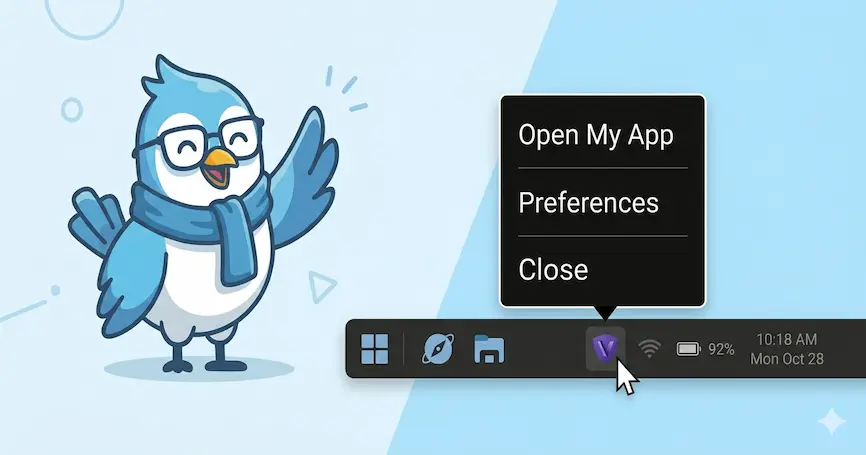
The system tray is essential for a lot of desktop apps that needs to run in the background. But due to Flutter’s limited desktop support, again the Flutter Desktop Community has saved us with another much needed plugin.
At Spotube, users expect to control playback from the tray, minimize the app while keeping it running, and have quick access to essential features without opening the main window.
So, we implement a reactive system tray that stays in sync with the app’s state. We use the tray_manager package to accomplish that.
In Spotube’s pubspec.yaml, we include:
dependencies:
  tray_manager: <latest>
  local_notifier: <latest>
  # we use it for state management
  hooks_riverpod: <latest>
  window_manager: <latest>
The tray_manager package provides cross-platform system tray integration, while local_notifier handles desktop notifications.
Our tray menu is built reactively using Riverpod providers.
In lib/provider/tray_manager/tray_menu.dart:
import 'package:hooks_riverpod/hooks_riverpod.dart';
import 'package:tray_manager/tray_manager.dart';
import 'package:window_manager/window_manager.dart';

final trayMenuProvider = Provider((ref) {
//..... internal logic
// ref.watch() to other providers that update this
// provider on change

// This is the part that you need to understand.
  return Menu(
    items: [
      MenuItem(
        label: "Show/Hide Window",
        onClick: (menuItem) async {
          // We use window_manager plugin to show or hide the window
          if (await windowManager.isVisible()) {
            await windowManager.hide();
          } else {
            await windowManager.focus();
            await windowManager.show();
          }
        },
      ),
      MenuItem.separator(), // A special type of menu item that creates a divider between other menu items
      // Play/Pause button that adapts to current state
      MenuItem(
        label: isPlaying ? "Pause" : "Play",
        // You can disable (gray out) an option in the menu
        disabled: !isPlaybackPlaying,
        onClick: (menuItem) async {
          // .. we are handling play/pause logic here
        },
      ),
      MenuItem(
        label: "Next",
        disabled: !isPlaybackPlaying,
        onClick: (menuItem) {
          // ... next handle logic
        },
      ),
      MenuItem(
        label: "Previous",
        disabled: !isPlaybackPlaying,
        onClick: (menuItem) {
          // ... previous handle logic
        },
      ),
      // Submenu for advanced playback controls
      MenuItem.submenu(
        label: "Playback",
        submenu: Menu(
          items: [
            // Repeat mode toggle
            MenuItem(
              label: "Repeat",
              // Checked is a special boolean that can be used
              // to show a check next to an item in the menu
              checked: isLoopOne,
              onClick: (menuItem) {
                // Logic for repeat
              },
            ),
            // Shuffle toggle
            MenuItem(
              label: "Shuffle",
              checked: isShuffled,
              onClick: (menuItem) {
                // Logic for shuffle
              },
            ),
            MenuItem.separator(),
            MenuItem(
              label: "Stop",
              onClick: (menuItem) {
                // Logic for stop
              },
            ),
          ],
        ),
      ),
      MenuItem.separator(),
      MenuItem(
        label: "Quit",
        onClick: (menuItem) {
          exit(0); // Closes the program
        },
      ),
    ],
  );
});
Key features of our tray menu:
- Reactive state: Menu items update when playback state changes
- Context-aware labels: “Play” vs “Pause” adapts to current state
- Disabled items: Playback controls are disabled when no track is loaded
- Checked items: Repeat and Shuffle show their current state with checkmarks
- Organized submenu: Advanced controls grouped under “Playback”
The system tray behaves differently on Windows vs macOS/Linux.
In lib/provider/tray_manager/tray_manager.dart:
class SystemTrayManager with TrayListener {
  final Ref ref;
  final bool enabled;

  SystemTrayManager(
    this.ref, {
    required this.enabled,
  }) {
    initialize();
  }

  Future<void> initialize() async {
    if (!kIsDesktop) return;

    if (enabled) {
      // Set platform-specific tray icon
      await trayManager.setIcon(
        kIsWindows
            ? 'assets/branding/spotube-logo.ico'  // .ico for Windows
            : kIsFlatpak
                ? 'com.github.KRTirtho.Spotube'  // App ID for Flatpak
                : 'assets/branding/spotube-logo.png',  // PNG for others
      );
      // Register this object as a listener for tray events
      trayManager.addListener(this);
    } else {
      // Clean up when tray is disabled
      await trayManager.destroy();
    }
  }

  void dispose() {
    trayManager.removeListener(this);
  }

  // Handle left-click on tray icon
  @override
  onTrayIconMouseDown() {
    if (kIsWindows) {
      // Windows convention: left-click shows the window
      windowManager.show();
    } else {
      // macOS/Linux convention: left-click shows context menu
      trayManager.popUpContextMenu();
    }
  }

  // Handle right-click on tray icon
  @override
  onTrayIconRightMouseDown() {
    if (!kIsWindows) {
      // macOS/Linux: right-click shows the window
      windowManager.show();
    } else {
      // Windows: right-click shows context menu
      trayManager.popUpContextMenu();
    }
  }
}
Platform differences we handle:
- Icon format: Windows requires
.ico, Linux/Flatpak use PNG or app ID strings - Click behavior: Windows expects left-click to open, macOS/Linux expects right-click
- Listener pattern: We implement the
TrayListenerinterface to receive tray events
Our Riverpod provider ties everything together:
final trayManagerProvider = Provider(
  (ref) {
    // Watch user preference for showing tray icon
    final enabled = ref.watch(
      userPreferencesProvider.select((s) => s.showSystemTrayIcon),
    );

    // Update tray menu reactively whenever app state changes
    ref.listen(trayMenuProvider, (_, menu) {
      if (!enabled || !kIsDesktop) return;
      trayManager.setContextMenu(menu);
    });

    // Create and manage the tray manager instance
    final manager = SystemTrayManager(
      ref,
      enabled: enabled,
    );

    // Clean up when provider is disposed
    ref.onDispose(manager.dispose);

    return manager;
  },
);
Why this pattern is powerful:
- Reactive updates: When some state (for Spotube, audio) changes (e.g. play/pause), the menu updates automatically
- User control: Users can toggle tray icon from settings
- Lifecycle management: Proper cleanup with
ref.onDispose - Single source of truth: Audio player state is the source, tray menu is computed from it
In your root app widget, initialize the tray manager early:
class Spotube extends HookConsumerWidget {
  @override
  Widget build(BuildContext context, ref) {
    // Initialize tray manager
    ref.listen(trayManagerProvider, (_, __) {});

    // ... rest of your app
  }
}
Desktop notifications inform users about important events even when the app window is hidden or minimized. At Spotube, we use the local_notifier package to show native desktop notifications.
In your lib/main.dart, initialize the notification system for desktop:
Future<void> main(List<String> rawArgs) async {
  final widgetsBinding = WidgetsFlutterBinding.ensureInitialized();

  if (kIsDesktop) {
    // Initialize local notifier with app name
    // This name appears in system notification settings
    await localNotifier.setup(appName: "Spotube");

    // Initialize other desktop services
    await WindowManagerTools.initialize();
  }

  // ... rest of initialization
}When users minimize Spotube to the system tray, we show a notification to confirm the app is still running. This is handled in lib/hooks/configurators/use_close_behavior.dart:
import 'package:local_notifier/local_notifier.dart';

// This notification is created once and reused multiple times
final closeNotification = !kIsDesktop
    ? null
    : (LocalNotification(
        title: 'Spotube',
        body: 'Running in background. Minimized to System Tray',
        actions: [
          LocalNotificationAction(text: 'Close The App'),
        ],
      )..onClickAction = (value) {
        // User clicked "Close The App" action
        exit(0);
      });
Breaking this down:
- Desktop-only: The notification is only created on desktop platforms
- Nullable: On mobile, it’s
null, preventing crashes - Callback:
onClickActionis invoked when the user clicks the notification action - Reusable: We create it once and call
show()multiple times
When the user closes the window and has “minimize to tray” enabled:
void useCloseBehavior(WidgetRef ref) {
  useWindowListener(
    onWindowClose: () async {
      final preferences = ref.read(userPreferencesProvider);

      if (preferences.closeBehavior == CloseBehavior.minimizeToTray) {
        // Hide the window
        await windowManager.hide();

        // Show notification that app is still running
        closeNotification?.show();
      } else {
        // Close completely
        exit(0);
      }
    },
  );
}
This notification gives users confidence that their music will keep playing and shows them how to close the app if needed.
Are you curious about this weird way of writing logical function? These look similar to react-hook, aren’t they? Actually, at Spotube, to reduce boilerplate and easier life-cycle handling of widgets, we use
flutter_hookspackage that is basically react-hooks but for Flutter. You can learn about the customuseWindowListenerhook on part 1 of this series.
You can create notifications for other scenarios. Here’s a pattern for doing it safely:
void showTrackChangeNotification(Track track) {
  if (!kIsDesktop) return;  // Only on desktop

  final notification = LocalNotification(
    title: 'Now Playing',
    body: '${track.name} • ${track.artist}',
    silent: false,  // Play system sound
  );

  notification.show();
}

void showDownloadCompleteNotification(String fileName) {
  if (!kIsDesktop) return;

  final notification = LocalNotification(
    title: 'Download Complete',
    body: fileName,
    actions: [
      LocalNotificationAction(text: 'Open Folder'),
    ],
  );

  notification.onClickAction = (value) {
    // Open the downloads folder
    openFileExplorer(downloadPath);
  };

  notification.show();
}
Best practices:
- Always check
kIsDesktop: Prevents crashes on mobile - Provide meaningful titles and bodies: Users should understand what happened
- Use actions sparingly: Notification actions are powerful but can be confusing
- Avoid notification spam: Don’t show notifications for every minor event
Here’s how window management, system tray, and notifications work together in Spotube’s initialization:
class MainApp extends HookConsumerWidget {
  @override
  Widget build(BuildContext context, ref) {
    // Make sure run this in the root app to Setup system tray with reactive menu
    // Riverpod providers are lazy, so we need to listen to it here to make sure it's initialized
    ref.listen(trayManagerProvider, (_, __) {});

    return ShadcnApp.router(
      // ... app configuration
    );
  }
}
The user flow:
- User clicks close button →
useCloseBehaviorintercepts - Close preference checked → If “minimize to tray” is enabled…
- Window hides →
windowManager.hide() - Notification shows → User sees “Running in background”
- User interacts with tray → Platform-specific behavior triggers
- Windows: Left-click shows window
- macOS/Linux: Right-click shows window
- Tray menu displays → Reactive menu with current playback state
- User controls playback → Menu items trigger audio player actions
- Menu updates → State changes reflect in next menu open
This seamless integration is what makes Spotube feel like a native desktop application.
Happy building! 🚀
Want to dive deeper? Check out the Spotube repository to see the complete implementation. The patterns we’ve shared here are battle-tested and ready for your own projects.